
Login to vrslcm

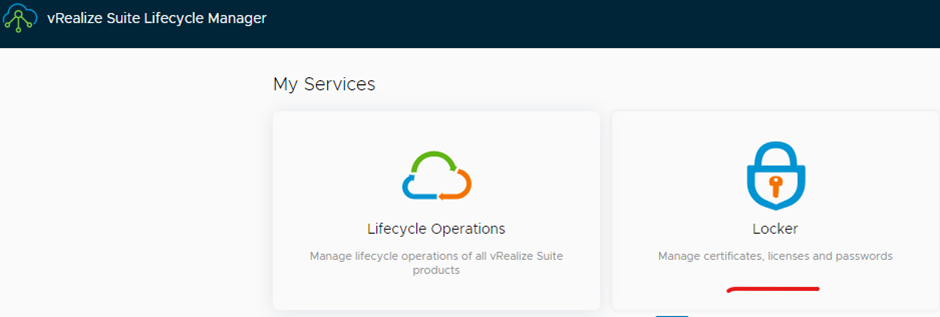
Click locker
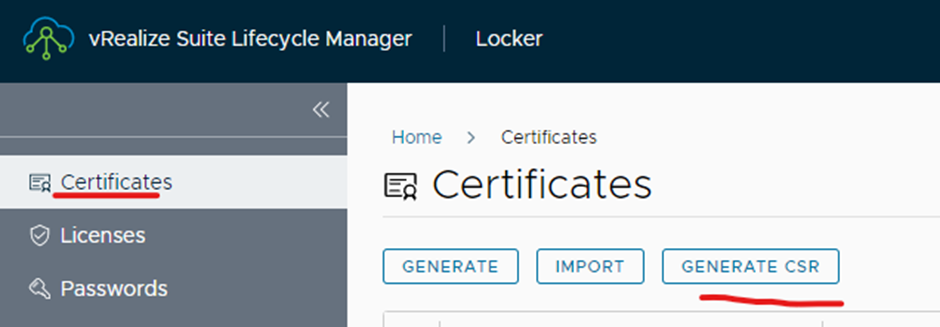
Click generate csr
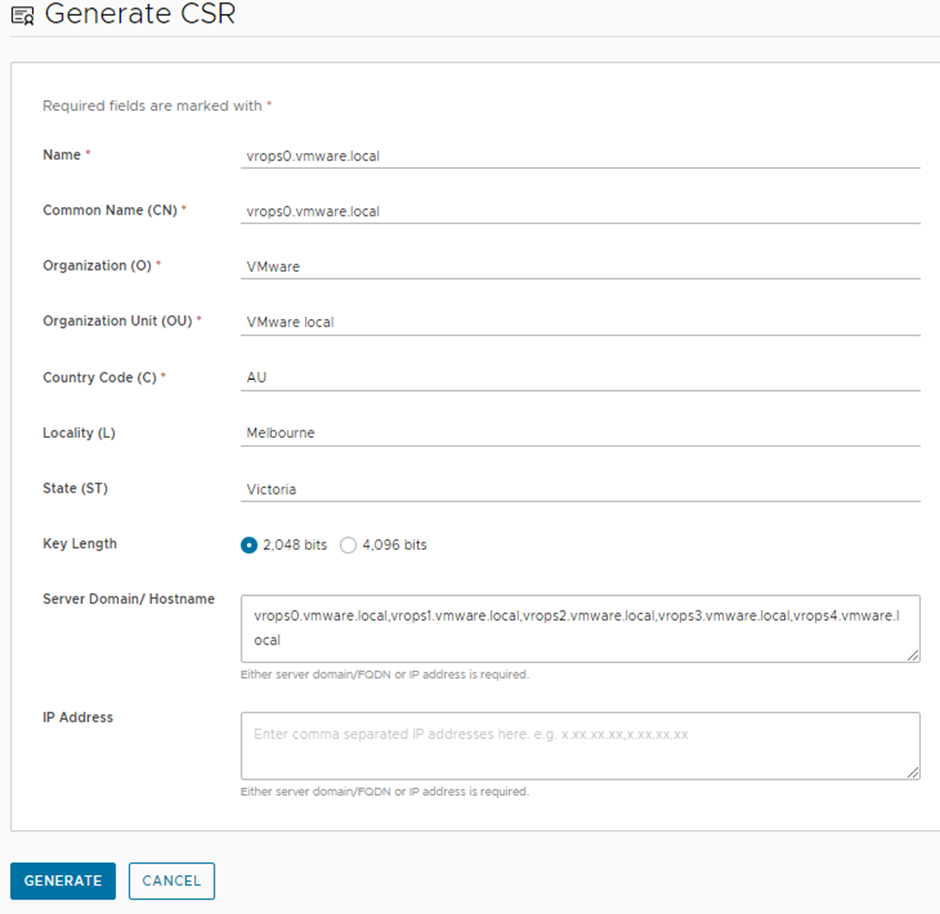
Type in the details of the csr and click generate (in this example I am using my vrops)
File will automatically download

Open the file and copy it from the beginning to the end (DON’T COPY the private key and when you copy include the —–BEGIN CERTIFICATE—– & —–END CERTIFICATE—-)

In this example I am using my Microsoft certificate authority to sign the certificate via web enrolment
Login to your web enrolment server

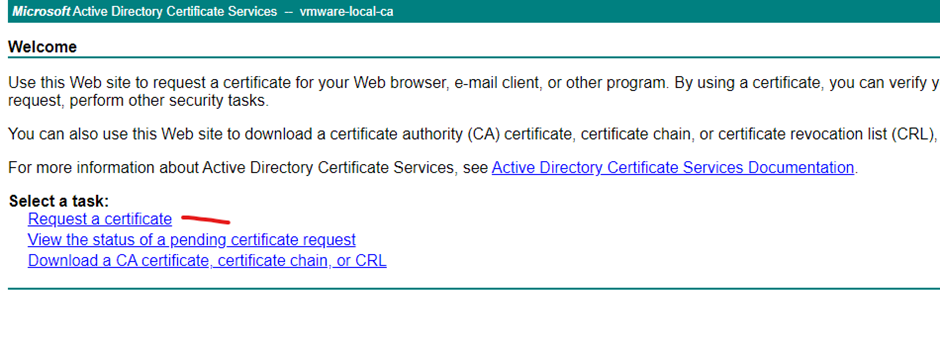
Click advanced certificate request

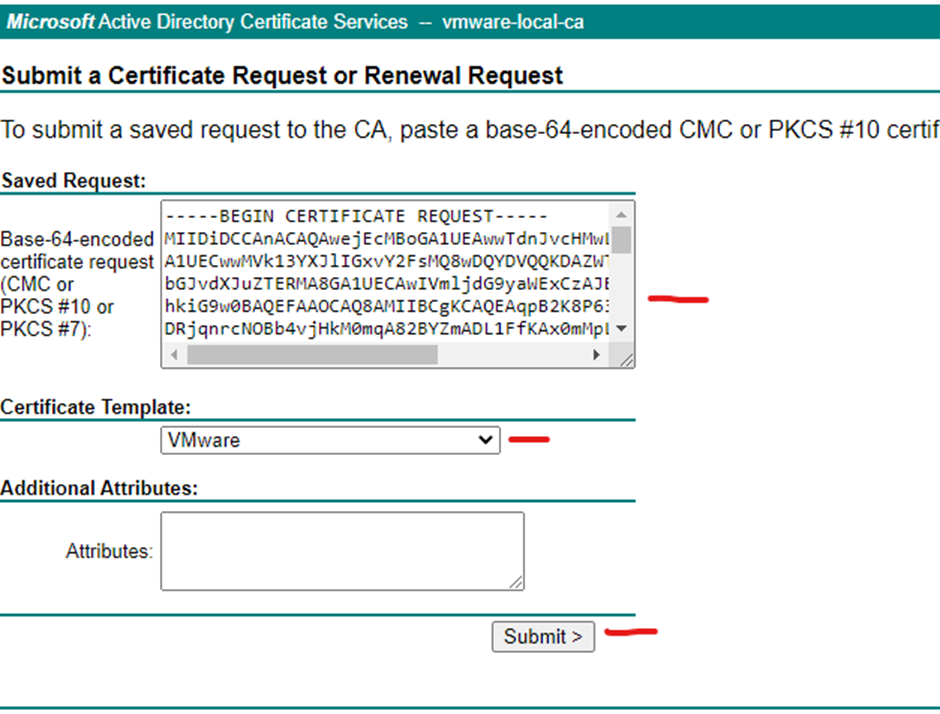
Copy the csr from the certificate to the saved request (Don’t include the private key)

Select you VMware template and click submit
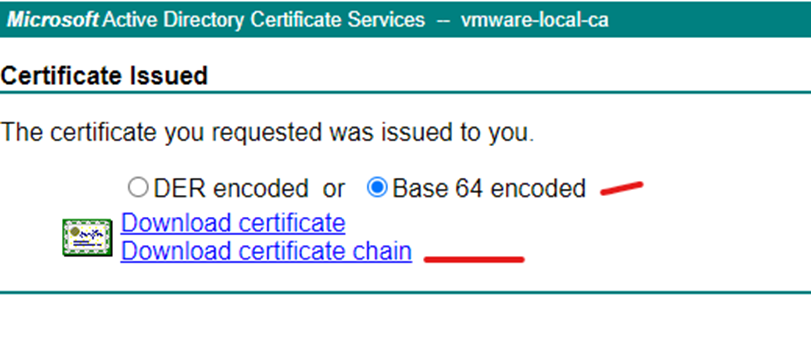
Select base 64 encoded and click download certificate chain

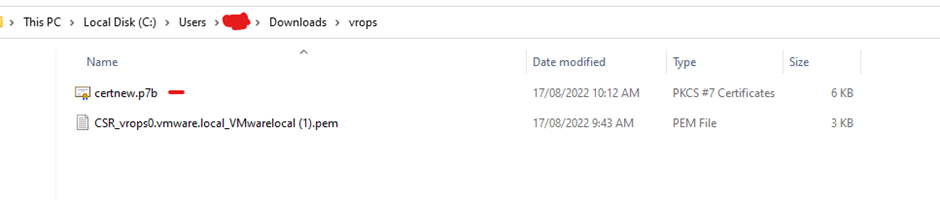
Once downloaded you need export the certificates
Double click on your p7b file
Expand until you get to certificates folder
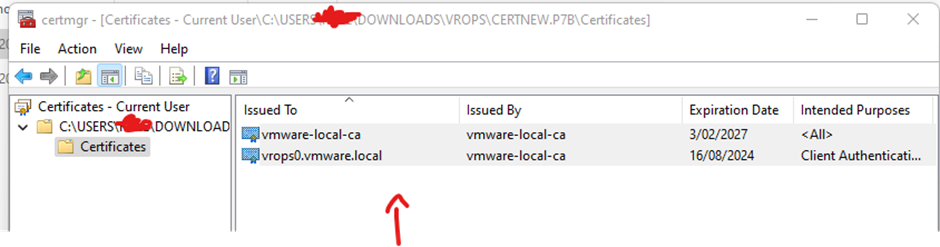
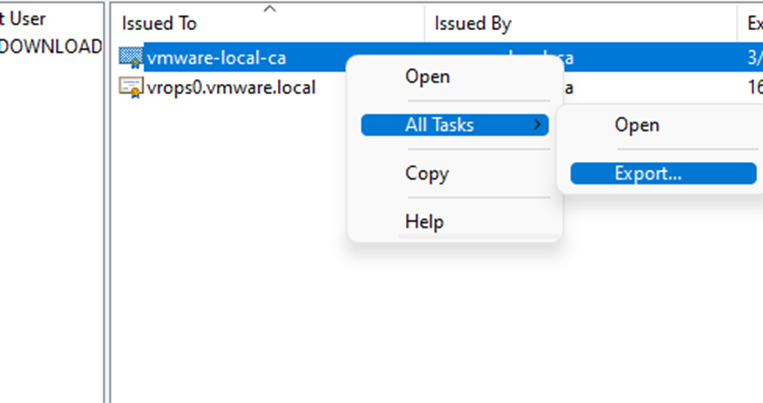
Right click on your root certificate > click all tasks > click export
Click next

Select base 64-encoded and click next

Select the location and name you want to use and click next

Click finish
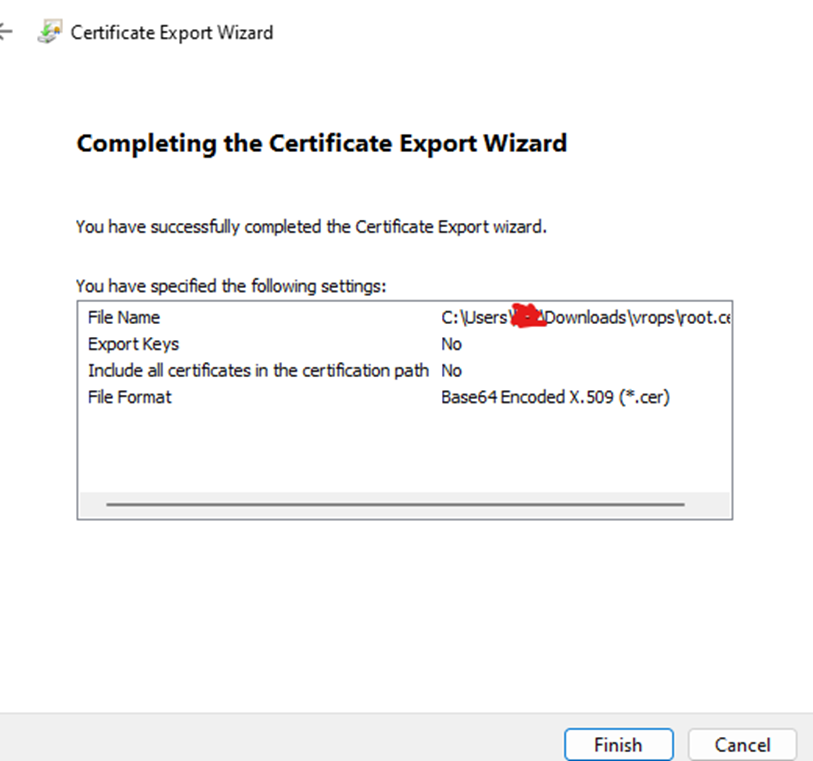
Do the same on the server certificate
Right click server certificate > click all tasks > click export

Click next

Select base 64-encoded and click next

Select the location and name you want to use and click next
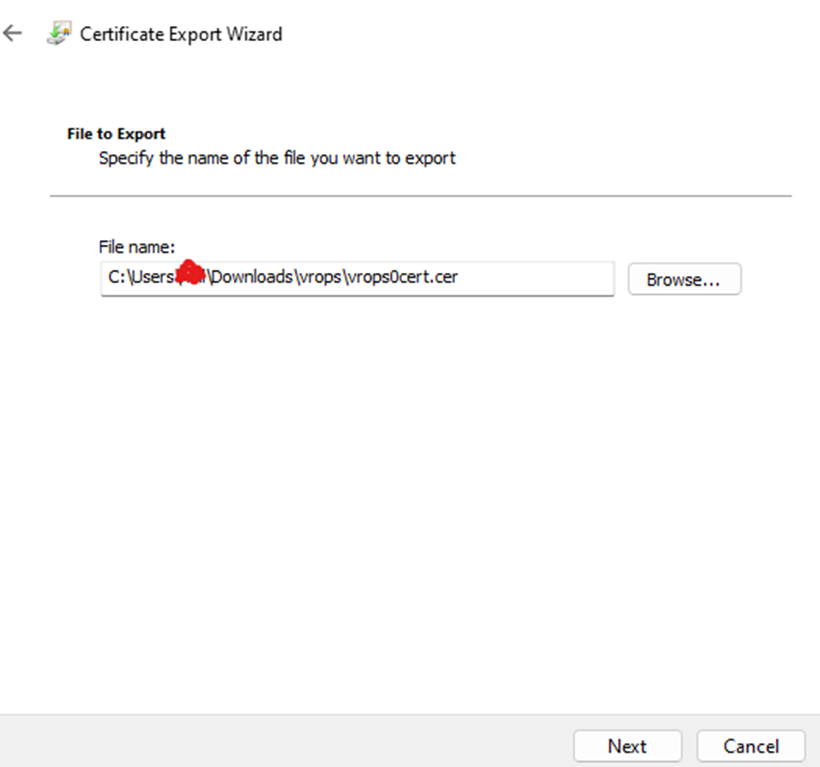
Click finish

Once you have all the files you can create your pem file to import to vrslcm

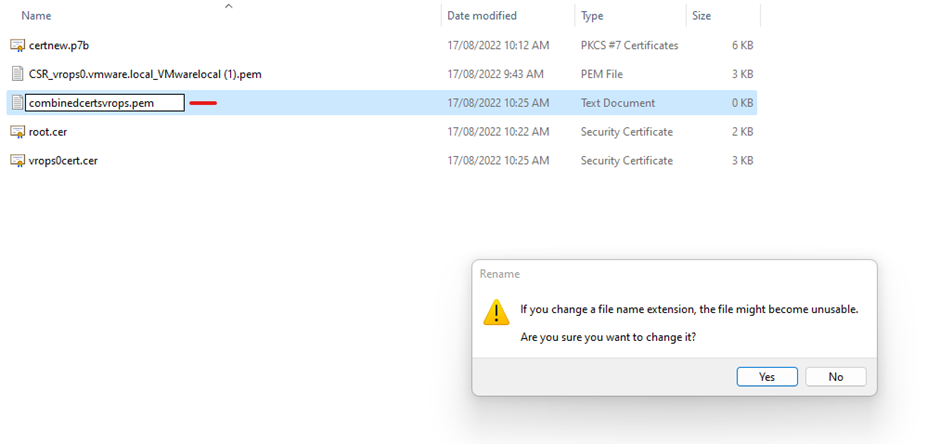
Create your .pem file
1. Private Key
2. Machine or Server certificate
3. Intermediate CA certificates
4. Root Certificate
Copy the private key into the combined .pem file (You can open the files using a text editor)

Under private key copy the machine certificate


Name the certificate > browse your combined .pem file location > click import


Now you can replace your certificate for vrop
